Phillip Intelligence Quick Start
Setup, first message and first order in five minutes. For questions, see the frequently asked questions; for details, the full guide.
What does it do?
You add the Phillip Intelligence connection to the AI app you already use (Claude, ChatGPT). The assistant looks up prices, reads your portfolio and prepares orders on your behalf.
- No order is sent without your approval. The assistant shows the summary as an order card; the order is transmitted when you press the Approve button on that card.
- Large amounts require a second approval in MobilG. You set that threshold yourself in your authorization matrix.
- The brokerage's risk and balance checks always apply, and every step is logged.
What can I do?
Everything is asked in a single sentence. Any request that involves an order is summarized first and is never sent without your approval.
| Action | Example message |
|---|---|
| Price and order book depth queries | "How is ASELS doing?" · "Show me GARAN's order book depth." |
| Market scan | "List today's top-gaining banking stocks." |
| Portfolio, balance and limits | "Summarize my portfolio and available balance." |
| Placing orders | "Buy 100 lots of GARAN at 134.20." |
| Order tracking | "Show my orders for today." |
| Order amendment and cancellation | "Change the price to 133.50." · "Cancel my GARAN order." |
| Conditional orders | "If GARAN drops to 40, sell 100 shares." |
| Protection plan tied to a buy | "Buy 100 shares of GARAN at 45.50; stop loss if it drops to 42, take profit at 49." |
| Timing for the opening or closing auction | "Hold this order for the opening auction." |
| Research and KAP news | "Give me the PhillipMind technical view for ASELS." · "What are GARAN's latest KAP announcements?" |
| Notification preferences and disconnecting | "Turn off KAP notifications." · "Disconnect my account." |
Before you start
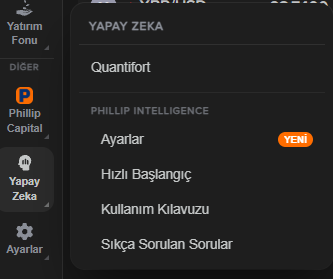
First, enable AI trading in MobilG. If you skip this step, the assistant cannot act on your account even after the connection is set up in Claude or ChatGPT. From the left menu in MobilG, open Yapay Zeka → Phillip Intelligence → Ayarlar (AI → Phillip Intelligence → Settings); the Yetki Ayarları (Authorization Settings) tab opens.
Turn on the Yapay zekâ ile işlem izni (AI trading permission) switch at the top of the screen. While it is off, the AI assistant cannot place, cancel or query anything on your account. Once it is on, the Claude'a bağlan (Connect to Claude) or ChatGPT'ye bağlan (Connect to ChatGPT) button on the same screen takes you to the setup; the setup sections below lead to the same place.
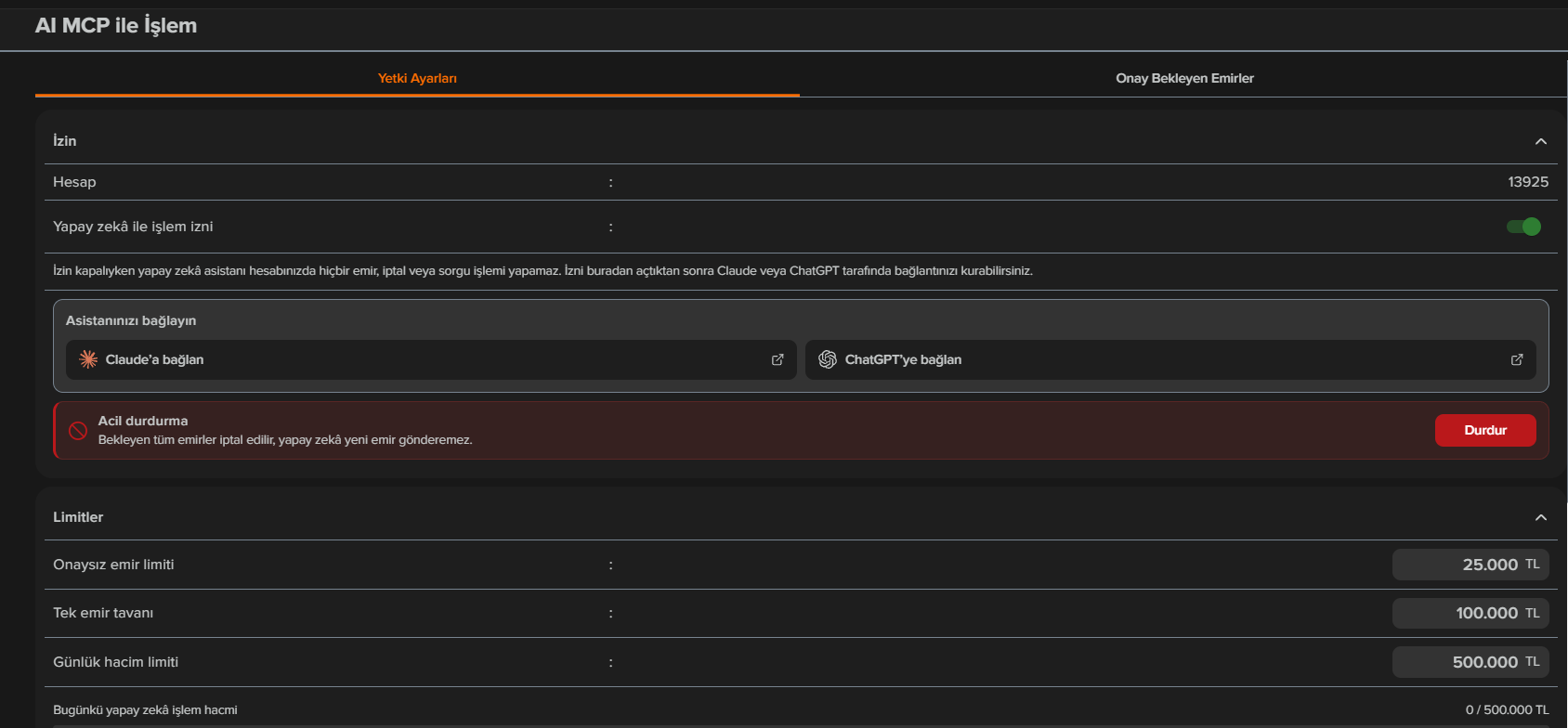
AI trading permission is not a single switch; on the same screen you also set the limits and the scope yourself:
- Onaysız emir limiti (no-second-approval limit, TRY): up to this amount, an order goes straight to the exchange with your approval in the chat; every order above it also lands in MobilG for a second approval after the chat approval. If you want small amounts to go through with a single approval and large ones with two, set this limit accordingly.
- Tek emir tavanı (per-order cap, TRY): no order above this amount is ever prepared.
- Günlük hacim limiti (daily volume limit, TRY): the combined ceiling for trades executed through this channel in one day plus orders still working on the exchange. The unfilled amount of cancelled and rejected orders is returned to your allowance immediately. Today's usage is shown under the same row.
- İzinli pazarlar (permitted markets): you choose between the Equity Market and VIOP.
- İzinli emir tipleri (permitted order types): limit and market. If you do not select market orders, the assistant asks for a limit price on every order. Because the amount of a market order cannot be known in advance, such orders always come to you for approval regardless of amount.
- Piyasa verisi (market data) and Derinlik kademesi (depth levels): whether the assistant sees real-time or delayed prices, and how many depth levels it sees.
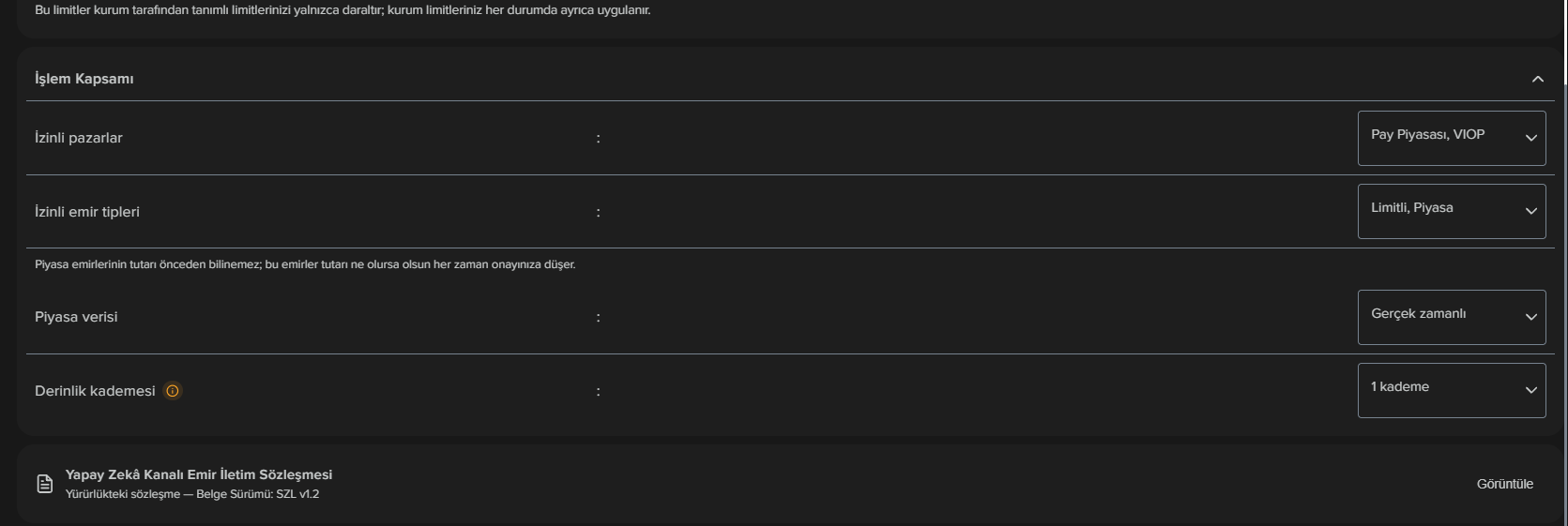
The three amounts are ordered: the no-second-approval limit cannot exceed the per-order cap, which cannot exceed the daily volume limit. These limits can only narrow the brokerage's own risk and balance checks, never widen them. When you confirm the values, the agreement annex is shown on screen with the exact figures you entered and is signed with your PIN or biometric verification; every later change goes through the same approval and takes effect within 5 minutes at most. The agreement in force can be read via the Görüntüle (View) link at the bottom of the screen. In an emergency, the Durdur (Stop) button on the same screen cancels all pending orders and blocks the AI from sending new ones.
Have your account number, MobilG password and phone at hand. Login requires an SMS code.
The connection details are the same in every app:
- Connector name
Phillip Intelligence- Service address
https://mcp.phillipcapital.com.tr/mcp
Claude setup
The button opens Claude's connector screen with the name and address already filled in. Check the details and add the connector, then complete the Phillip Capital login.
If the button does not work: add it manually
- From the + button in the chat box, follow Add connector → Add custom connector (or Settings → Connectors).
- Name:
Phillip Intelligence. Address:https://mcp.phillipcapital.com.tr/mcp. Click Continue. - On the authentication screen, change nothing: Authentication Always required, OAuth client No client ID, register one automatically, additional header field empty. Do not enter your own Client ID or Secret.
- Click Connect; on the Phillip Capital screen that opens, complete the login with your account number, MobilG password and SMS code.
Ready-made prompt for Claude Desktop
Copy the text below and paste it into Claude Desktop; the assistant will walk you to the settings screen. It does not set up the connection itself; you still complete the login.
Help me add the Phillip Intelligence connection to Claude Desktop as a custom connector. Connector name: Phillip Intelligence. Remote MCP URL: https://mcp.phillipcapital.com.tr/mcp Show me the steps to get to the Settings > Connectors > Add custom connector screen. Leave OAuth discovery automatic: Authentication should be 'Always required (Detected)', OAuth client 'No client ID — register one automatically (Detected)' and Additional request headers empty. After the connector is added, ask me to complete the Phillip Capital OAuth login and SMS verification myself. Do not start any investment transaction or order.
The Claude web, desktop and mobile apps are recommended; the order summary also appears as a card in the chat. If you want to use your account in a two-way voice conversation, the app that supports this today is also Claude; in voice mode the summary is not shown on screen but read aloud. Order preparation and approval are offered only in apps that show this card; orders cannot be placed in terminal agents such as Claude Code or Codex. Claude's consumer product may refuse to transmit orders under its own policy; this does not originate from Phillip Capital.
ChatGPT setup
- From the profile menu, turn on Settings → Plugins → Developer mode.
- On the Plugins page, choose Add → Create MCP App at the top right.

- Fill in the form. Copy each value with its button and paste it into the form; do not touch the advanced OAuth settings.
- Icon (optional)
- Download the icon
- Name
Phillip Intelligence
If spaces are not accepted, typephillipintelligence.- Connection
- Server URL (not Tunnel):
https://mcp.phillipcapital.com.tr/mcp - Authentication
- OAuth
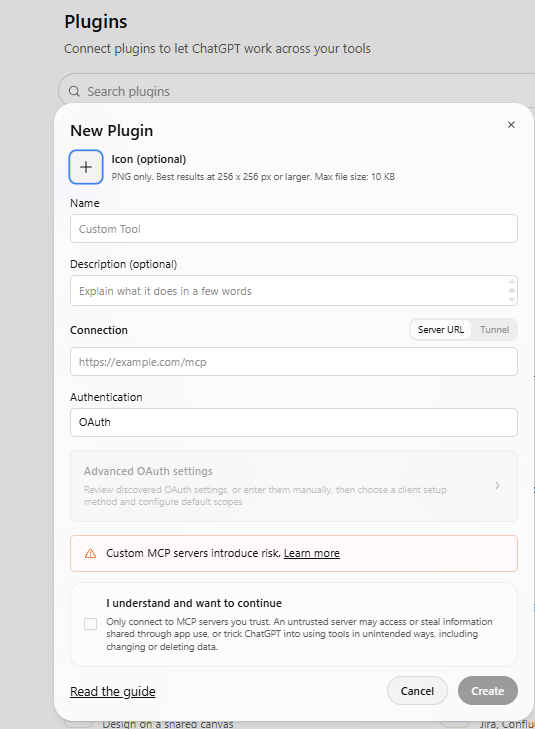
- Read the custom server warning, tick the checkbox and click Create.
- When asked to log in, press the Sign in with … button; on the Phillip Capital screen, complete the login with your MobilG password and SMS code. If the chat has a plugin selector, select Phillip Intelligence.

If Developer mode or the option to add a plugin is not visible, check your account's custom plugin access. Order preparation and approval are not offered in Claude Code, Codex or other terminal-based agents.
ChatGPT's voice mode (the wave icon) does not run connectors; it cannot access your account and the figures it quotes may be out of date. To use it by speaking, dictate with the microphone icon in a written chat.
Test the setup
Make your first message a read request, not an order:
The reply should show your active account, your authorization matrix (markets, order type, per-order and daily limit), your portfolio and your intraday trading limit. If it does not, see the "Having trouble?" section below.
To see what the service can do, you can also ask this; the assistant lists what you can do, with example messages:
Enter your password and SMS code only on a screen whose address bar shows auth.phillipcapital.com.tr. Never type them into the chat; the assistant will not ask for your password.
First order
Symbol, side, quantity and price are enough. Instead of a price you can also give a reference such as "at the best ask" or "at the lower daily price limit".
Buy 100 lots of GARAN at 134.20.
Order summary ready, valid for 120 seconds.
Press the Approve button on the card to send it.
(You press the Approve button on the card.)
Order transmitted. Status: working on the exchange. You can track it by saying "Show my orders".
- The summary is valid for 2 minutes; if it expires, the assistant prepares a new one.
- An order above your no-second-approval threshold lands on the Pending AI Order Approvals screen in MobilG after the chat approval. The moment you choose "Approve and Send" there, it goes to the exchange; you do not need to return to the chat. That summary is valid for 5 minutes.
- To amend, just say "change the price to 133.50"; to cancel, "cancel my GARAN order". Both are summarized first and you approve them.
Regular summaries
You can receive portfolio, balance and order summaries automatically every day at a time you choose. To do this, you open a project in the app and define scheduled tasks in it. The steps below are for Claude.
Open a project. In the left menu, go to Projects, create a new project and name it Phillip Capital.
Add a task. On the right side of the project page, press the + sign next to the Scheduled heading.
Define the task. Give the task a name, copy a prompt from the table below and paste it in, choose the day and time, and save. Repeat this step for each task.
| Task | Suggested time | Prompt | |
|---|---|---|---|
| Morning summary | Weekdays 09:50 | Using the Phillip Intelligence connection, summarize my portfolio, my pending orders and the latest KAP announcements for the shares I hold. Do not prepare or send any order. | |
| Pending instructions | Weekdays 10:05 | Using the Phillip Intelligence connection, list my pending orders, conditional orders and protection plans. Do not prepare or send any order. | |
| End of day | Weekdays 18:10 | Using the Phillip Intelligence connection, summarize my trades executed today and my available balance. Do not prepare or send any order. | |
| Market scan | Weekdays 18:10 | Using the Phillip Intelligence connection, list the day's top-gaining and top-losing shares. Do not prepare or send any order. | |
| Weekly allocation | Friday 18:15 | Using the Phillip Intelligence connection, summarize my portfolio allocation. Do not prepare or send any order. | |
| Disconnecting | Every day 18:15 | Disconnect my Phillip Intelligence connection. |
- A scheduled task does not send orders. An order is transmitted only when you press the Approve button on the card. Tasks are for information.
- Your session must be open when a task runs. A session is valid for 24 hours; if it has expired, the task cannot fetch a summary. Once you log in again, the tasks continue to run.
- If you set up the disconnecting task, the other tasks will not run the next day until you log in again.
- For a price-based action, use a conditional order or a protection plan, not a scheduled task.
- The scheduled task feature may depend on the subscription plan of the app you use. Screen names may change as the app is updated.
Eight things to know
- An order placed after the trading session has closed is not held over to the next day. A day-valid limit order placed the same day before the open is, with your approval, timed for the opening auction (09:40:01). If you say "hold it for the opening auction" or "hold it for the closing auction", the order waits at the brokerage and is sent when the session opens.
- Your session renews every 24 hours. When the connection drops in Claude, a card with a "Reconnect" button appears in the chat; press it and sign in with your MobilG password and SMS code. If no card appears, Settings → Connectors → Phillip Intelligence → Reconnect does the same job. See "Having trouble?" for details.
- Prices are real-time or delayed by 15 minutes depending on your license. The reply says which; on a delayed license, the price of a reference-based order such as "at the best ask" is also resolved from the delayed book, and the summary notes this.
- There is no short selling. No sale beyond what you hold is prepared. Chained orders tied to time or to another symbol, and trailing watch orders, are not offered.
- You can set up conditional orders. Say "if GARAN drops to 40, sell 100 shares" or "sell if it falls 3 percent from its peak"; the system determines the type (Stop Loss, Take Profit, Buy the Dip, Buy on Rise, Dynamic). You set the expiry date, up to 30 days. The order waits at the brokerage and, when triggered, goes out through the brokerage's own checks; execution is not guaranteed. Amounts that require MobilG approval can for now only be set up in MobilG. For details, see the full guide.
- You can set up a protection plan tied to a buy. Say "buy 100 shares of GARAN at 45.50, and once it fills set a stop loss if it drops to 42 and a take profit if it rises to 49, valid until September 30"; with a single approval the buy goes out, a Stop Loss and a Take Profit are set up for the filled quantity, and when one triggers the other is removed. The exits are market orders; do not set the levels too close to your purchase price. "Move the stop loss to 43" changes a level; "cancel the plan" closes it. For details, see the full guide.
- Limits are changed in MobilG on the Yapay Zeka → Phillip Intelligence → Ayarlar (Settings) screen and take effect within 5 minutes at most. The daily allowance used today and what remains are shown in the connection status query.
- Cancellation works even if you hit the rate limit or AI trading has been stopped on your account. It only fails while the market is closed and during the windows when the exchange does not accept cancellations (in the Equity Market: 09:50 – 10:00, 18:00 – 18:01, 18:05 – 18:10).
Having trouble?
| Situation | What to do |
|---|---|
| The assistant says "I don't have access" | The connection exists on the account but is turned off in this chat. Enable Phillip Intelligence from the chat box's tool menu. |
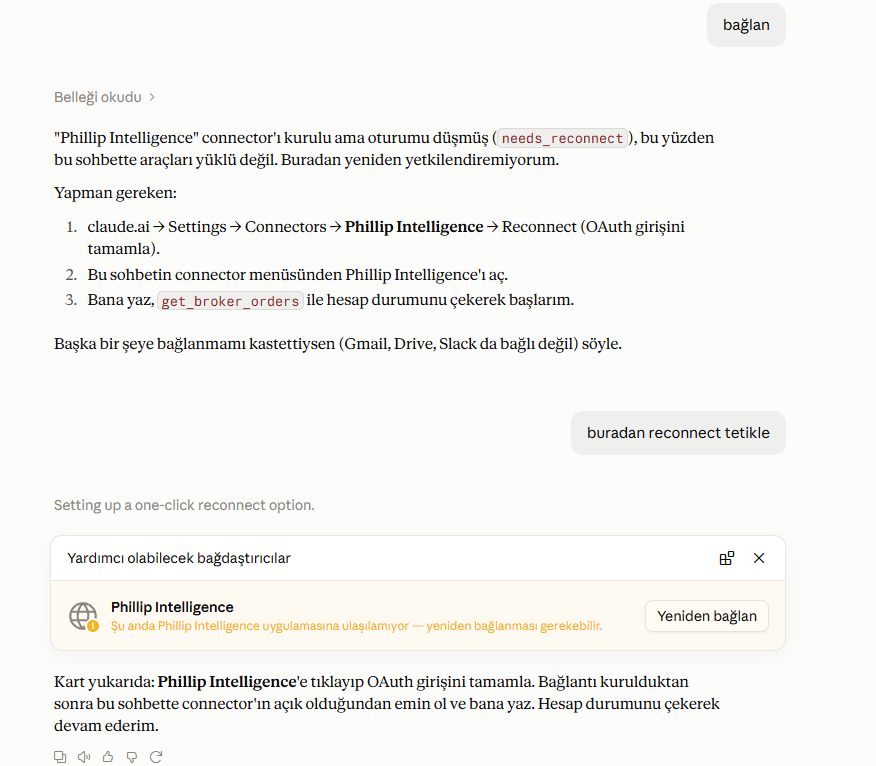
| "Your connection may have expired", or the assistant says the connector "needs to be reconnected" | The 24-hour session has ended. Tell Claude "reconnect from here"; a card with a "Reconnect" button appears, as shown below. Press it, sign in with your MobilG password and SMS code, then check that the connection is on in the chat. If no card appears, use Settings → Connectors → Phillip Intelligence → Reconnect. No order was sent. |
| "AI trading permission has not been granted yet" | In MobilG, open Yapay Zeka → Phillip Intelligence → Ayarlar and turn on the Yapay zekâ ile işlem izni (AI trading permission) switch (see "Before you start"), wait up to 5 minutes, then try again. |
| The assistant says a tool "is not offered on this connection" | A new feature has been added to the service. Disconnect and reconnect. |
| "Market orders are not available on this account" | Give a limit price; market order permission is enabled in MobilG. |
| "Too many requests in a short time" | Rate limit; the assistant tells you how long to wait. Placing and cancelling orders are not affected. |
| I want to shut the connection down completely | Say "Disconnect me". All sessions and the connector's authorization are revoked; using it again requires a new login. |
The reconnect card Claude shows when the session has expired (Turkish interface):
For support, pass along the exact text of the message you received, the reference code if there is one, and the time. For order flow, trading session hours, limits and all messages, see the full guide.