Phillip Intelligence User Guide
With your AI assistant on Borsa Istanbul: ask prices, view your portfolio, prepare, approve, amend and cancel orders, set up conditional orders (Stop Loss, Take Profit, Trailing), and attach a protection plan to a buy. What you can do, what is limited, and the order in which things happen, with example conversations.
1. What is Phillip Intelligence
Phillip Intelligence is Phillip Capital's AI order service. It is added as a connector to the AI application you use (Claude web, desktop and mobile apps, ChatGPT and similar). Once connected, you talk to the assistant; the assistant asks prices, reads your portfolio and prepares orders on behalf of your account.
Three rules come before everything else:
- No order goes to the exchange without your approval. The assistant first prepares the order and shows its summary on an order card; the order is sent only when you press the Approve button on the card. Above a certain amount, approval is also required in the MobilG app.
- The brokerage's risk and balance controls always apply. The AI channel cannot go beyond these controls; it can only narrow them.
- Every step is recorded. From the price you asked to the order you approved, the time, content and result of every call is kept.
Market information, KAP announcements and Phillip Capital research summaries provided by the assistant are for information only; they are not investment advice. The order decision and its responsibility are yours.
2. Connecting and signing in
Which application?
| Application | Status |
|---|---|
| Claude (web, desktop and mobile apps) | Recommended. Order summaries, submissions and status replies are also drawn in the chat as an "order card"; two-way voice conversation also works in this app. Claude's consumer version may refuse to send orders under its own policy; this does not come from Phillip Capital systems. |
| ChatGPT (web, custom connector) | Connection and authorization are open. |
| ChatGPT, voice mode (wave icon) | Not supported. ChatGPT does not run connectors in voice mode: it cannot access your account, and any balance or order status it quotes may be out of date. To use the service by speaking, dictate in the written chat with the microphone icon; the reply appears on screen as text, and you can listen to it with the speaker icon if you wish. |
| Claude Code, Codex and other terminal-based agents | Order preparation and approval are not offered. |
What works in which application?
| Application | Orders by typing | Order card | Dictation (microphone) | Two-way voice conversation |
|---|---|---|---|---|
| Claude (web, desktop, mobile) | Yes | Yes | Yes | Yes. The summary is read aloud; submission still happens via the Approve button on the card shown on screen |
| ChatGPT (web, mobile) | Yes | Yes (web). The mobile app may not draw the card; use the web version for orders | Yes | No. Voice mode cannot access your account |
| Terminal-based agents | Not offered | No | No | No |
If you want to use your account by voice, the application that supports this today is Claude. In ChatGPT you can dictate in the written chat with the microphone icon. In a voice conversation you do not see the order summary on screen; if you want to approve after seeing the summary, return to the written chat before approving.
The order card is both the guarantee of the summary and the means of submission. Orders below your no-second-approval threshold are sent only with the Approve button on the card; typing "I approve" in the chat does not send the order, and the assistant will ask you to press the button. For orders above the threshold, approval is given in the chat and the order goes to MobilG for approval (see Placing orders). To make sure the summary you approve is the summary the server prepared, order preparation and approval are offered only in applications that show the card. In an application that does not show the card (such as terminal clients) you can still query prices and your portfolio; if order preparation is requested, the system declines with a message explaining why, and no order is sent. In Claude voice mode the summary is read aloud; submission still happens via the card on screen, and if you want to approve after seeing the summary, return to the written chat.
Setup
Connector name: Phillip Intelligence
Service address: https://mcp.phillipcapital.com.tr/mcp
The connector name may look different on reference screens. The name is only a display name; enter the service address exactly as shown. Menu names may differ depending on the app's language and version.
Claude quick setup
The button opens Claude's connector screen with the name and service address filled in. Check the details shown, add the connector and complete the Phillip Capital sign-in.
If the form does not open or the fields come up empty, follow the manual steps below. The Desktop button opens a setup instruction; it does not set up the connection by itself. If the app does not open, copy the instruction and paste it into Claude Desktop.
Ready-made instruction for Claude Desktop
Help me add the Phillip Intelligence connection to Claude Desktop as a custom connector. Connector name: Phillip Intelligence. Remote MCP URL: https://mcp.phillipcapital.com.tr/mcp Show me the steps to reach the Settings > Connectors > Add custom connector screen. Leave OAuth discovery automatic: Authentication 'Always required (Detected)', OAuth client 'No client ID — register one automatically (Detected)' and Additional request headers must be empty. After adding the connection, ask me to complete the Phillip Capital OAuth sign-in and SMS verification myself. Do not start any investment transaction or order.
You can also check the connection in Desktop with the same Claude account. Account sign-in and permission approval are completed on the relevant app's screens. The quick setup buttons do not start any investment transaction.
Claude manual setup
- Press the + button in the Claude chat box. Follow Add connector → Add custom connector. Alternatively, use the Settings → Connectors → Add custom connector screen.
- Enter
Phillip Intelligencein the name field andhttps://mcp.phillipcapital.com.tr/mcpin the address field, then press Continue. - On the authentication screen, check the following options:
| Field | Selection |
|---|---|
| Authentication | Always required — Detected |
| OAuth client | No client ID — register one automatically — Detected |
| Additional request headers | Leave empty. |
The OAuth client in the reference setup is automatic registration. Do not switch to the Use Anthropic’s hosted client metadata — Recommended option; do not enter your own Client ID or Client Secret.
- Add the connector; if sign-in is requested, continue with Connect. On the Phillip Capital sign-in screen, complete authorization with your account number, your MobilG password and your SMS verification code.
- Return to Claude, check that the connector is active, and run the post-setup connection test.
ChatGPT setup
- Press the menu showing your profile or subscription name and open Settings.
- Follow Plugins → Developer mode. Read the warning on screen and turn on the Developer mode switch.
- Return to the Plugins page. Press the Add button at the top right; the menu that opens has three options: Create plugin, Upload plugin archive, Create MCP App. Choose Create MCP App.

- Fill in the New Plugin form as follows:
| Field | Value |
|---|---|
| Name | Phillip Intelligence (if spaces are not accepted, phillipintelligence) |
| Description / Icon | Optional. |
| Connection | Server URL must be selected (not Tunnel): https://mcp.phillipcapital.com.tr/mcp |
| Authentication | OAuth |
| Advanced OAuth settings | Keep the automatic defaults; do not add manual client details. |
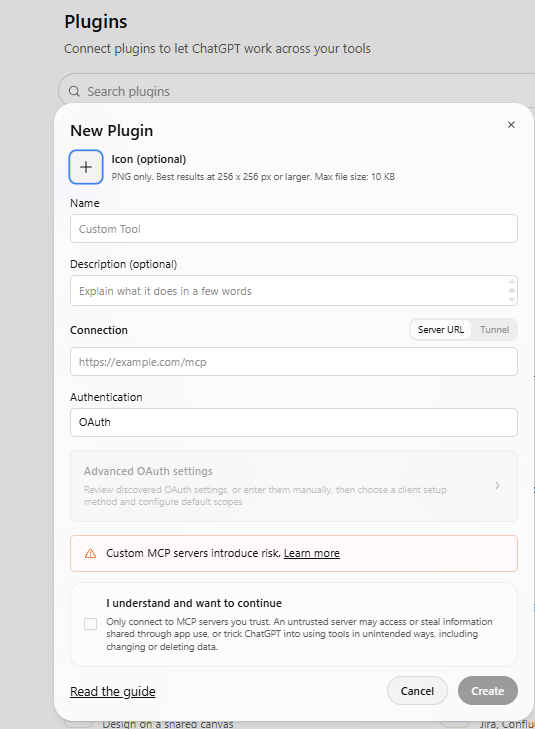
- Read the custom MCP server warning at the bottom of the form. If you want to continue, tick the I understand and want to continue box and press Create.
- The plugin appears in the Installed row. When sign-in is requested, press the Sign in with … button shown with your connector name.
- On the Phillip Capital sign-in screen, sign in with your MobilG password and your one-time SMS code (OTP); enter the requested account details and complete the authorization.
- Return to ChatGPT and check that the plugin is connected. If the chat offers a plugin selection, select Phillip Intelligence and run the test below.
These steps are based on ChatGPT screens as of September 29, 2026; menu names may appear in English depending on the app's language (Plugins, Create MCP App, New Plugin). If you do not see Developer mode or the add button, check your account's or workspace's access to custom plugins.
Post-setup connection test
Your first message can be:
To see what the service can do, you can also ask the following; the assistant lists what you can do, with example messages:
Enter your sign-in details only on the Phillip Capital screen that shows auth.phillipcapital.com.tr in the address bar. Never type your password or SMS code into a chat message.
Session and account
- Session duration
- For security, the session is renewed every 24 hours. It is normal for the app to ask you to re-authorize. In Claude, say "reconnect from here" and a card with a "Reconnect" button appears in the chat; press it and sign in again with your MobilG password and SMS. If no card appears, Settings → Connectors → Phillip Intelligence → Reconnect does the same job. The card is shown on the quick start page.
- If it says "I have no access"
- The connector may be attached to your account but switched off in a new chat. Enable Phillip Intelligence from the chat box's tools menu; no new sign-in is needed. If the tool responds, the connection is fine.
- New features
- When a new tool is added to the service, open connections do not see it. If the assistant says "not offered on this connection", disconnect and reconnect; the tool list is fetched when the connection is made.
- Authorization
- AI trading authorization is granted in MobilG: from the left menu open Yapay Zeka → Phillip Intelligence → Ayarlar and turn on the "Yapay zekâ ile işlem izni" (AI trading permission) switch. While the switch is off, the assistant cannot act on your account even with the connection in place. Screenshots are on the quick start page. If you connect with an account that has not been authorized, the assistant says "complete the authorization in MobilG"; there is nothing to do on the server side.
- Disconnecting
- If you say "disconnect me", the assistant confirms your intent once, then all sessions and the connector permission are revoked. To use the service again, you must sign in again with your MobilG details. This is not needed just to end a chat.
3. Your first conversation
Start with reading, not with an order. This way the assistant gets to know the official channel and you see your account's authorization summary.
In the conversations in this guide, the boxed texts are summary, warning and result sentences produced by the system; the assistant shows them word for word. The sentences around them are the assistant's own wording and may vary from conversation to conversation.
Check my connection status, summarize my portfolio and my available balance.
Connection ready; active account XX09, new order entry and market data enabled. Your AI trading authorization (profile version 21): markets BIST_PP and VIOP, order type limit only, short selling off. Per-order cap 200,000 TL, no-second-approval threshold 100,000 TL, daily 300,000 TL; used today 0 TL, remaining 300,000 TL.
Portfolio (from cache, 40 sec ago): intraday trading limit 82,501.60 TL (cash portion 41,250.80), credit limit 0. GARAN.E 500 shares, average cost 118.40, last price 134.30, profit/loss +7,950.00. THYAO.E 100 shares, average 296.00, last 298.00. Sellable: GARAN 500, THYAO 100. VIOP: total collateral 25,000.00, available collateral 25,000.00, no margin call.
The values in this reply come from the authorization matrix defined for your account in MobilG; they differ per account. The "remaining" amount is shown after deducting the reserve of orders working on the exchange.
How to read buying power
The amount available for equity purchases is the intraday trading limit the brokerage calculates for your account; it appears under the same name in MobilG. The reply also states the limit's type (intraday or cash), its cash portion and its blocked portion. If your account has an additional limit group, this amount can exceed the sum of cash and credit; the credit limit is shown for information only and is not part of the intraday check. If the brokerage cannot report a limit at that moment, the T+2 available balance is shown. If the brokerage's check rejects the order for insufficient limit, the reply also states the available amount:
When you ask for your portfolio in an app that shows cards (Claude web, desktop, mobile), a portfolio card comes with the text: a stock table (shares, last price, value, average cost, profit/loss) and two allocation charts. The first shows the portfolio's split between cash, stocks, funds and VIOP collateral; the second shows the split within stocks (the 7 largest holdings and "Other"). Values are last price times share count; funds are counted at the current value reported by the brokerage, and VIOP at total collateral.
Portfolio data is refreshed from the back office at most once a minute; you may see a "from cache, N seconds ago" note in the reply. Shares sold today and awaiting settlement do not count as a position; the "sellable" line includes today's purchases and deducts blocked shares and working sell orders. Mutual fund units in your account (fund code, unit count, unit price, current value) are also listed in the portfolio; fund trading is not done through this service. Prices of ETFs (.F) and warrants (.V) can be queried and appear in the portfolio; they cannot be traded through this channel either — orders are placed only in equity and VIOP symbols.
4. Market data
Single price
"What's GARAN at?" Last price, best bid and ask, intraday high and low, volume, turnover, daily lower and upper price limits, price tick.
Multiple prices
"Prices for GARAN, AKBNK, THYAO." At most 5 symbols per call. If more are requested, none are returned.
Order book depth
"GARAN depth." Bid and ask levels, with sizes and order counts. How many levels you see depends on your data license.
Scan
"Top 20 gainers", "10 most active futures", "list the XU030 option chain". Up to 100 symbols per call; this is the right tool for lists, indices and finding symbols. Suffixes: .E equity, .F ETF, .V warrant, F_ futures, O_ option.
The assistant takes BIST prices, changes, volume and the lower and upper daily price limits only from this service; it does not quote a price from a web search, a news site or from memory. Every price reply states whether the data is real-time or delayed, and the market timestamp.
Real-time or delayed?
Price display is real-time or delayed by 15 minutes depending on your data license. Every price reply states which it is (data_mode); for delayed data the delay is also stated. The assistant does not present delayed data as real-time.
This distinction also covers order preparation. With a delayed license, a reference such as "buy at the best ask" is resolved from the delayed book; the summary explicitly notes that the price was calculated from data delayed by 15 minutes and that the current price on the exchange may differ. To trade at the current price, type the price yourself as a number. With a delayed license, if you ask a price or request a reference-based order at the start of the day, in the first 15 minutes of the opening auction call phase (09:40 – 09:55), you get a "delayed data not yet available" reply; orders with a numeric price are not affected.
Price tick
The price_step_size in replies is the tick of the current price band. The limit price must be a multiple of this tick; the assistant resolves phrases like "2 ticks below the best ask" accordingly. If the number of ticks crosses a price band, the system changes the band too: since equities above 100 TL trade in 0.10 steps and below 100 TL in 0.05 steps, 15 ticks below 101.10 is 99.80, not 99.60 (ten steps of 0.10 down to 100.10, then 100.00, then four steps of 0.05). The "aggressive price" is the best ask when buying and the best bid when selling; the "passive price" is the opposite; the "last price" is the last trade.
| Price band (TL) | Stocks and warrants | ETFs |
|---|---|---|
| Up to 20 | 0.01 | 0.01 |
| 20 – 50 | 0.02 | 0.01 |
| 50 – 100 | 0.05 | 0.02 |
| 100 – 250 | 0.10 | 0.05 |
| 250 – 500 | 0.25 | 0.10 |
| 500 – 1000 | 0.50 | 0.25 |
| 1000 – 2500 | 1.00 | 0.50 |
| Above 2500 | 2.50 | 1.00 |
Records with no price
While the opening auction is running, or for a stock that has not yet traded that day, last price, bid and ask come back empty; only the daily lower and upper price limits are shown. The reply explicitly notes that this is not a data feed problem. Once continuous trading starts, the price appears.
Gross settlement and surveillance measures
For stocks on the exchange's daily surveillance measure list, a warning is added to the price reply and the order summary: in a stock under gross settlement, shares bought today cannot be sold until settlement completes, and cash from a sale cannot be used before settlement. The question "can I sell today what I bought today" is answered with this warning and with the "sellable shares" line in the portfolio, not with a general rule.
Query limits
Price queries have their own budget, counted separately from the order quota. The unit is the number of symbols read from the server; repeating the same symbol within 5 seconds is answered from the cache and spends no budget. For every request that hits a limit, the sentence you see is the same: "Too many requests in a short time; try again a little later." Which limit it was, how many seconds until you can retry, and the suggestion to use a scan for lists are given in the assistant's explanation.
| Limit | Value | When exceeded |
|---|---|---|
| Symbol reads | 180 per minute, 30 per 10 seconds | Short wait; order placement and cancellation are not affected |
| Symbols per call | 5 | The whole call is rejected |
| Distinct symbols watched | 60 per 5 minutes | One-by-one queries stop; a scan is suggested for lists and indices |
| Scans | 30 per minute, 10 per 10 seconds | Short wait |
None of these limits stops placing, amending or cancelling orders. Even if the price budget is exhausted, the order flow keeps working. These values may change under firm rules.
5. Placing orders
Flow
- Say it. "Buy 100 lots of GARAN at 134.20." Symbol, side, quantity and price are enough.
- A summary comes back. The assistant prepares the order, runs it through risk and authorization checks, and shows you an unchangeable summary. At this stage nothing goes to the exchange.
- Send it. Press the Approve button on the order card that comes with the summary; the moment you press it, the order is transmitted to the brokerage. Typing "I approve" in the chat does not send the order. The summary is valid for 2 minutes; when it expires, a new summary is prepared.
- See the result. Acceptance, fill, partial fill or rejection is reported by the assistant.
Buy 100 lots of GARAN at 134.20.
Order summary ready, valid for 120 seconds. Account XX09.
To send, press the Approve button on the card.
(Presses the Approve button on the card.)
Order transmitted. Status: working on the exchange, 0 shares executed. Order number AILMT21b4c59daa448da. You can track it by saying "show my orders".
What's the status of this order?
Status: filled. History: 11:02:19 working on the exchange (100 remaining), 11:02:31 partially filled (last trade 40 shares, 60 remaining), 11:02:33 filled (last trade 60 shares, 0 remaining).
The amount format in the summary is fixed: two decimal places. The order is sent with the button on the card that carries this summary; the assistant cannot change the summary.
Order types and durations
- Side
- buy, sell. Short selling is not offered on this channel.
- Type
- limit and market. In the current setup, accounts require a limit price; a market order gets the reply "set a limit price". Market order permission is granted in the MobilG Authorization Matrix (Yetki Matrisi). In a trading session that does not accept market orders (opening auction, closing auction, VIOP evening session), no summary is prepared; the reply states the next window for market orders.
- Duration
- day (default), good till cancelled (GTC), immediate or cancel (IOC). Scheduled orders can only be day-order limit orders.
- Quantity
- A whole number of lots. In VIOP, the number of contracts.
Sellable-quantity check on sells
Before a sell order is prepared, the sellable quantity in your account is read. If the quantity you request exceeds it, no summary is produced and nothing appears on your phone:
The check is done for equities, not for VIOP contracts. If the back office cannot respond at that moment, the summary is prepared and the brokerage's pre-submission check takes over.
Pegging the price to the market
Instead of giving a number, you can give a reference: best bid, best ask, bid-ask midpoint, last trade, lower daily price limit, upper daily price limit; plus or minus up to 50 price ticks if you wish. If you say "buy at the lower limit", the assistant does not guess a number; it uses the day's lower limit as the reference. The assistant resolves the price from the real-time or 15-minute delayed book depending on your license, snaps it to the tick, keeps it within the daily lower and upper price limits, and shows the reference, the price timestamp and the data age in the summary. If the price data has gone stale, no summary is prepared; it says "try again a little later".
THYAO 50 lots, one tick below the best ask, buy.
Price resolved from the live book: reference best ask 298.00, 1 tick down, tick 0.25, price time 11:02:14, data age 0.3 seconds. Order price 297.75.
To send, press the Approve button on the card.
(Waits a while; presses the Approve button on the card two minutes later.)
The summary's 120-second validity has expired. Shall I prepare the same order again at the current price?
If the reference price has gone stale, no summary is prepared at all: "Live market data is currently unavailable. Try again a little later." With a delayed data license, the reference is taken from the delayed book; the summary includes the reference price, the price timestamp and the data age, together with a note that the data is delayed.
Which orders require mobile approval?
Your authorization matrix has two amounts. Orders within the no-second-approval threshold go directly with the Approve button on the card. Orders above it require two approvals, and the order of those approvals is fixed. First you approve the summary in the chat; only then does the order appear on the "Pending AI Order Approvals (Bekleyen Yapay Zeka Emir Onayları)" screen in MobilG — nothing appears on your phone before the chat approval. Then, the moment you press "Approve and Send (Onayla ve Gönder)" there, the brokerage transmits the order to the exchange; you do not need to return to the chat and say "send" again. If you are curious about the result, ask the assistant for the order's status. The summary is valid for 5 minutes and the period is not extended; if it expires, the order is not sent.
Buy 500 lots of ASELS at 268.50.
The amount is 134,250 TL, above your no-second-approval threshold (100,000 TL); the summary is valid for 300 seconds.
Do you approve the summary?
I approve, send it.
The approval deadline is 11:12:40. The order goes the moment you approve it in MobilG; you can ask for its status afterwards if you wish.
I approved it in MobilG, what happened?
The order was transmitted with your MobilG approval. Status: working on the exchange, 0 shares executed.
On the MobilG screen, every order has "Approve and Send" and "Reject" buttons; the decision cannot be undone. If you change the quantity of an order awaiting approval on your phone in the chat ("make it 152"), the assistant shows the new summary and the summary states that it will replace the previous one; the record on your phone does not change until you approve the new summary in the chat. The moment you approve it, the old record is withdrawn from the screen, and only the new summary remains: "The previous summary of the same order has been withdrawn from the MobilG screen; only this summary is on the screen." Replacement applies to the same account, symbol, side, type, price and duration; a second order in the same stock with a different price or the opposite side is a separate order, and both remain on the screen; reject the one you do not want.
If you approved the old record on your phone before the chat approval, that order has gone; if it is open on the exchange, the new summary does not open a second order: "The order this summary replaces was already transmitted to the exchange with MobilG approval; no second order was opened. To change the quantity or price, amend the order on the exchange." If the order has already filled or closed, the assistant may prepare a new summary at the same price; the summary starts with the warning "ATTENTION: a 150-share order sent moments ago at the same price has filled; this summary means an ADDITIONAL 152 shares", and before approval the assistant asks "additional, or total?".
If you reject in MobilG, the assistant receives the reply "The transaction was not accepted due to current controls." and the order is not sent. An order exceeding the per-order cap is not prepared at all:
Buy 1000 lots of ASELS at 268.50.
If I lower the quantity to 744 it stays within the limit; shall I prepare it?
When limits are changed in MobilG, they reach the system within 5 minutes at most.
How the daily limit is counted
The daily AI trading limit is consumed by the executed amount. When an order goes to the exchange, a reserve equal to its amount is placed and deducted from the remainder; the amount used today is the total of executed trades and working orders. When an order is cancelled or rejected by the exchange, the unexecuted amount comes back immediately; the unexecuted part of an order that expires at end of day also comes back at that moment. On an order amendment, the increased difference is reserved additionally. The amount used today and the amount remaining are visible in the connection status query; the daily bar in MobilG does not show the reserve of working orders, so the two values can differ during the day. When the limit is exhausted, the order is rejected with this text:
What is different in VIOP
Borsa Istanbul has not accepted market orders in VIOP since March 1, 2021. When you ask for "market", the summary comes with this note: "Because the exchange does not accept market orders in VIOP, this order is transmitted to the exchange as 'market to limit' (remainder cancelled): it executes at the best opposite price level, and the unexecuted part is cancelled." When closing a position, a limit order giving a few ticks of leeway from the best bid/ask can also be used for a more certain fill.
- The amount is calculated with the contract multiplier; 1 XU030 futures contract is worth price × multiplier. The summary shows this.
- The order is covered by VIOP collateral, not cash; the "available collateral" line in the portfolio is what counts.
- A VIOP order cannot be amended; cancel it and place a new order.
- If your account is not defined for VIOP, the exchange rejects the order: "Your account does not appear to be defined on the exchange for trading in this market; the order was rejected by the exchange. For VIOP account setup, contact your account representative."
Multiple orders
You can approve separately prepared summaries in one go: "I approve all three." At most 20 summaries are sent at once, and each result is reported separately. Instructions to be sent when the price reaches a level are a separate feature (see Conditional orders). Automatic orders tied to time, to another order's result or to another symbol (chained, monitored) are not offered; the assistant says so and suggests preparing the current order immediately.
6. Session hours and scheduled orders
Session information is queried live from the brokerage's risk system at every order preparation; the assistant does not keep its own clock. In the Equity Market, each symbol's current session comes from the exchange's live data; the table below is the brokerage's calendar and serves as a fallback. An order given in a closed or restricted session gets the next acceptance window added to its reply: "The next order acceptance window is 10:00:00." On half-day (eve-of-holiday) days, equities close at 13:00 and VIOP at 12:40; equity closing auctions are moved forward accordingly (12:50 margin broadcast, 12:51 – 12:55 closing auction call phase, "at the close" orders transmitted at 12:51:01), and there is no VIOP evening session that day.
Equity Market
VIOP
VIOP order amendment is not done through this channel; the request gets the reply "Amendment of VIOP orders is not supported; cancel the order and enter a new one."
Leaving an order for the open or the close
Outside the trading session, you can have an order prepared and say "leave it for the open" or "leave it for the close". The order waits at the brokerage and, skipping the first second, is transmitted to the exchange when the window opens; the transmission time comes from the brokerage's calendar. While waiting, it is not visible on the exchange or in MobilG; the assistant states this and the planned transmission time in the summary. To cancel while it is waiting, just quote the submission number from the summary; cancellation is immediate.
Leave a buy for tomorrow's open: AKBNK 200 lots at 70.00. (time 19:30)
To send, press the Approve button on the card.
(Presses the Approve button on the card.)
Status: scheduled for the session. Submission number 1dcbaf3d443a8954772acb513ff41ca6.
I changed my mind, cancel that order.
A scheduled order can only be a day-order limit order. Since VIOP has no closing auction, "at the close" cannot be requested there; contracts included in the evening session are sent "now" during that session. If the requested window does not exist because of a holiday or early close, the reply is "There is no closing auction today or in the coming days (early close or holiday); place the order without scheduling, using 'now'." If session information cannot be obtained at that moment, no summary is prepared: "Session information is currently unavailable; place the order without scheduling, using 'now', or try again shortly."
For a scheduled order that requires mobile approval, if the MobilG approval arrives after the window has closed, the order is not carried over to the next day and is not sent: "The approval arrived after the session window the order was scheduled for had closed; the order was not sent and was not carried over to the next day. If you wish, prepare the order again: without scheduling to send immediately, or with 'open_auction' again for the next open."
A day-order limit order requested "now" before the same day's open is not rejected; it is scheduled for the open, and the summary comes with this note: "The market is not accepting orders right now. If you approve, this order will be transmitted to the exchange not immediately but in the opening auction call phase (…); until then it is not visible on the exchange and can be cancelled." An order placed without scheduling after the day's session has closed is not carried over to the next day and comes back like this:
Buy 200 lots of AKBNK at 70.00, send it now. (time 19:30)
If you wish, I can schedule the same order for tomorrow's opening auction.
7. Conditional orders (stop loss, take profit, trailing)
A conditional order is an instruction that waits at the brokerage and is sent to the exchange when the price reaches a level you set or retraces by a distance you set. It uses the same infrastructure as conditional orders in MobilG: an order you set up here is visible in MobilG, and one set up in MobilG is visible here.
It differs from a normal order in three important ways:
- It does not go to the exchange immediately. It waits at the brokerage until the condition is met or the validity date expires; it does not appear in your exchange order list.
- When triggered, it goes through the brokerage's own channel. Balance, position and risk checks are done by the brokerage not when the order is set up but at the moment it triggers. Being set up does not mean it will execute.
- The assistant does not wait and watch. What waits is the instruction at the brokerage; closing the chat changes nothing.
Types
The type names are the same as on the MobilG screen.
| Type | Side | When it triggers | How to say it |
|---|---|---|---|
| Stop Loss (Zarar Kes) | Sell | If the price falls to or below the level you set | "If GARAN drops to 40, sell 100 shares" |
| Take Profit (Kar Al) | Sell | If the price rises to or above the level you set | "If GARAN rises to 50, sell 100 shares" |
| Buy the Dip (Düşerken Al) | Buy | If the price falls to or below the level you set | "If AEFES drops to 17, buy 50 shares" |
| Buy on Rise (Yükselirken Al) | Buy | If the price rises to or above the level you set | "If AEFES passes 20, buy 50 shares" |
| Trailing Sell (Dinamik Sat) | Sell | If the price retraces by the distance you set from the highest level it has seen since the order was set up | "If GARAN drops 3 percent from its peak, sell 100 shares" |
| Trailing Buy (Dinamik Al) | Buy | If the price rises by the distance you set from the lowest level it has seen since the order was set up | "If AEFES rises 0.50 TL from its bottom, buy 50 shares" |
You do not have to pick the type yourself
Stating the side and the level is enough. The system determines the type by where the level sits relative to the last price, and writes it by name in the summary: on a sell, a level below the price is Stop Loss and above it Take Profit; on a buy, below is Buy the Dip and above is Buy on Rise. If you give a distance (TL or percent) instead of a level, the order is Trailing.
If you name the type yourself ("set a stop loss"), the system compares it with the price. If it does not fit, the order is not set up and the suitable type is named; the assistant does not change the side, the level or the type on its own — it asks you.
Set a stop loss on GARAN at 50 lira, 100 shares, valid until the end of the month. (last price 45.50)
50.00 TL is above the current price. If you want to sell when the price rises to 50, that is a Take Profit order; if you want to stop a loss, give a level below the price. Which would you like?
If the last price cannot be obtained, the system does not guess a type; it lists the types for that side and asks which one you want. If the price is exactly at the trigger level, the order is also not set up, and a different level is requested.
What you will be asked when setting one up
- Symbol, side, quantity.
- Trigger price or trailing distance. Not both. The trigger price can have at most two decimal places. The trailing distance is given as TL or percent — only one of the two.
- Validity date. Today or later, at most 30 days ahead. If you did not say one, the assistant asks; it does not choose a date for you.
Flow
Before every new conditional order, the conditional orders waiting on your account are shown. Setting up the same order a second time is not blocked; you decide whether it is a duplicate. Then the summary written by the system comes with a card; the setup is approved with the Approve button on the card. The summary is valid for a few minutes.
If GARAN drops to 40, sell 100 shares.
Until what date should the order be valid? It can be at most 30 days ahead.
September 30.
- AEFES.E, Buy the Dip, 50 shares, trigger 17.00 TL, valid until 25/09/2026
To set it up, press the Approve button on the card.
(Presses the Approve button on the card.)
Your Stop Loss order has been set up. You can also see it on the MobilG conditional orders screen.
If the price crosses the trigger level between the summary and your approval, the order is not set up; the assistant explains the situation and, if you wish, prepares a new summary based on the current price.
Trailing order example
If GARAN drops 3 percent from its peak, sell 100 shares, valid until October 10.
To set it up, press the Approve button on the card.
A trailing order has no trigger price; the level moves on its own as the price moves in your favor. If the price rises from 45.50 to 48.00, the trigger rises to 46.56; if it turns back from there, the order triggers.
Viewing and cancelling
When you say "show my conditional orders", the waiting instructions are listed with their type, quantity, level and validity date. Triggered, expired or cancelled ones do not appear in this list. To cancel, the assistant names the order and takes your confirmation.
Cancel my GARAN stop loss order.
GARAN.E Stop Loss, 100 shares, trigger 40.00 TL, valid until 30/09/2026. Shall I cancel this order?
Yes.
A conditional order cannot be amended; to change the level or the quantity, cancel the order and set up a new one. A triggered conditional order is now an ordinary exchange order: it appears in your order list as an order entered through another channel and is tracked from there.
Authorizations and limits
Checks are split by side. A sell-side conditional order (Stop Loss, Take Profit, Trailing Sell) counts as protection of a position you hold: it is not measured against limits and does not go to MobilG approval; only the account's kill switch applies. A buy-side conditional order is a new position; the AI authorizations you defined in MobilG apply in full: permitted markets, the per-order limit, quantity and amount limits, and today's remaining portion of the daily limit. The order amount is quantity times trigger price; since a Trailing order has no trigger price, the last price is used.
If the buy amount is above the threshold requiring MobilG approval, the conditional order cannot be set up from here; MobilG approval for conditional orders is not yet supported:
If AEFES drops to 9.20, buy 1,000 shares, valid until the end of the month.
The order amount is 9,200 TL, and your no-second-approval threshold is 6,000 TL. You can set this order up in MobilG; to set it up from here, at most 652 shares at 9.20 TL would fit.
A triggered order is sent through the brokerage's own channel and does not count as an order placed via AI: on the day it triggers it does not consume your daily AI limit. The brokerage's balance, position and risk controls, however, are applied in full at the moment of triggering.
Restrictions
- Only on equity (.E) symbols. There are no conditional orders on VIOP contracts, ETFs or warrants.
- Stop Loss and Take Profit are sell-only; Buy the Dip and Buy on Rise are buy-only. Trailing orders can be set up in both directions.
- The condition can only be tied to the same symbol's price. Conditions tied to time or to another symbol are not offered; nor are conditional cancellation or conditional amendment. For a stop loss and take profit tied to a buy order's fill, there is the protection plan.
- Validity is at most 30 days; an expired order lapses on its own.
- Setting up a conditional order uses the same "new order" rate limit as a normal order (see Authorizations and limits).
- Setup and cancellation are recorded at the brokerage together with the device details of the session you signed in with. If this information cannot be obtained, the operation is not performed; you are asked to sign in again.
Points to watch
- A conditional order is not a guarantee of execution. If at the moment of triggering your balance or sellable quantity is insufficient, or market conditions do not allow it, the order may not execute. A Stop Loss does not guarantee limiting the loss to a specific price.
- Gap opens. If the price opens beyond the level, the order triggers at that moment; it may trade at a price far from your trigger price, or not trade at all.
- Sellable quantity on sell-side orders. If you set up a Stop Loss or Take Profit and then sell the shares with another order, the conditional order stays in place. Cancel it if it is no longer needed.
- Do not set up the same order twice. The system does not block duplicates; this is why your waiting orders are shown before every summary. Do not approve without reading the list.
- The "result being verified" reply. Rarely, the brokerage's response is delayed. In that case do not have the order set up again; first say "show my conditional orders". If the order is in the list, it has been set up.
- Delayed data. If your market data license is delayed, the price you see in the summary is 15 minutes old and labeled as such. If the price is moving close to the trigger level, the system does not determine the type on its own; it asks you.
- While the market is closed you can set up conditional orders; the type is determined from the last known price, and the summary notes that the price may not be current.
8. Protection plan (buy + stop loss + take profit)
A protection plan lets you set up a buy order with two exits in a single approval: as the buy fills, Stop Loss and Take Profit conditional orders are set up only for the executed quantity; when one triggers, the other is removed. It differs from placing the buy and the exits separately in three ways:
- The exits wait for fills. If the buy never fills, no exit is set up; if 40 shares of a 100-share buy have filled, the exits are set up for 40 shares and grow as the rest fills (the larger one is set up first, then the smaller one removed; the protection is never left empty at any moment).
- When one triggers, the other is removed. If the Stop Loss triggers, the Take Profit is removed; if the Take Profit triggers, the Stop Loss is. The brokerage's system watches this; closing the chat changes nothing.
- The exits are market orders. Both a triggered Stop Loss and a triggered Take Profit are sent at the market price with remainder-cancelled. This is so the position is not left unprotected because of an exit that sits unfilled; the execution price may differ from the level you gave.
The exits wait on the same brokerage infrastructure as conditional orders: when triggered, they go to the exchange through the brokerage's own channel, through its own risk control, and they appear on the MobilG conditional orders screen. A triggered exit is now an ordinary exchange order; it cannot be amended through this channel.
What to say when setting one up
- The buy: symbol (equities only, .E), quantity, limit price or market order; duration day, transmission now or the opening auction.
- The levels: the Stop Loss must be below the buy price, the Take Profit above it (relative to the last price for a market buy). If you give a percentage ("1 percent stop loss"), the assistant calculates it from the buy limit price and writes it in the summary as a number.
- Validity: today or later, at most 30 days. Even if the buy order expires at end of day, the exits for the executed part wait until this date. If you did not say one, the assistant asks; it does not choose for you.
Flow
The summary starts with the buy order's ordinary summary and describes the whole plan in one paragraph. The conditional orders waiting on your account are again shown before the summary. Your approval covers both the buy and the plan.
Buy 100 shares of GARAN at 45.50; once it fills, set a stop loss if it drops to 42 and a take profit if it rises to 49, valid until September 30.
To set up the plan, press the Approve button on the card.
(Presses the Approve button on the card.)
The buy filled at 45.48; the Stop Loss at 42.00 and the Take Profit at 49.00 will be set up for 100 shares within a few seconds. Plan number: pp_… (for listing, amending and cancelling).
The buy may fill at a better price than its limit; the assistant quotes the execution price from the average reported by the brokerage and does not present the limit price as the execution price. If the buy does not fill immediately, the system reply starts with "The buy order has been sent."; the exits are set up with the first fill.
In apps that show cards, the plan card refreshes itself every few seconds until the plan ends: executed quantity and price, protected quantity, the status of both exits and, on top, any triggered exit.
Monitoring the plan
When you say "show my protection plans", only active plans are listed: the buy's status and executed quantity, the protected quantity, each exit's level, type and status, the exchange order number if an exit has triggered, and an attention note if there is one. Completed, cancelled or ended plans are shown only when you ask explicitly ("what happened to yesterday's plan"), and at most three of them.
| Plan status | Meaning |
|---|---|
| Awaiting buy order | The buy is at the brokerage and has not yet gone to the exchange (for example, scheduled for the opening auction). |
| Awaiting buy fill | The buy is working on the exchange, no fill yet; no exit has been set up. |
| Protection active | Both exits are waiting at the brokerage for the full executed quantity. |
| Protection updating | After a new fill or a level change, the exits are being set up again (a few seconds). |
| One exit triggered | The Stop Loss or the Take Profit triggered and the other was removed; the sell order is in the brokerage's channel. |
| Completed | The triggered sell has executed. |
| Ended | The buy closed without filling, the validity expired, you cancelled it, or the triggered sell was not created; the reason is written next to it. |
Changing a level
You can change the Stop Loss or Take Profit level of an active plan. If there is a single active plan, "move the stop loss to 43" applies to it; the assistant names the plan and the new level and takes your approval. The system sets up the conditional order at the new level for the executed quantity, then removes the old one; the other exit and the order type stay as they are. A plan cannot be changed after one of its exits has triggered.
In the GARAN plan, move the stop loss to 43.
GARAN.E plan (100 shares, Stop Loss 42.00 / Take Profit 49.00): the Stop Loss will become 43.00 TL, the Take Profit stays unchanged. To apply, press the Approve button on the card.
(Presses the Approve button on the card.)
Cancelling
"Cancel the plan" removes the waiting exits and closes the plan. It does not touch the buy order or a triggered sell; you cancel those separately.
Cancel the GARAN protection plan.
GARAN.E plan: 100 shares, Stop Loss 43.00, Take Profit 49.00. The buy order and the position stay as they are; to end the plan, press the Approve button on the card.
(Presses the Approve button on the card.)
If you cancel one of the plan's exits on its own, from MobilG or from the "my conditional orders" list, the plan does not re-create that leg; the other exit stays in place and an attention note appears on the plan. To remove the protection entirely, cancel the plan.
Authorizations and limits
The buy carries the checks and the limits: it goes through all the controls of an ordinary buy order and consumes your daily AI limit. If the buy is of an amount that requires MobilG approval, the flow is the same as for an ordinary order: after the chat approval the buy appears in MobilG, and the plan is set up with the MobilG approval. The exits count as protection of the position and are not measured against any limit; since a triggered sell goes through the brokerage's channel, it does not consume the daily limit either.
Restrictions
- Equities only (.E); there is no protection plan for ETFs, warrants or VIOP. Buy side only.
- Not available for stocks under gross settlement: since shares bought today cannot be sold before settlement completes, no exit could be created.
- The buy order must be a day order; transmission "now" or "to the opening auction".
- The exit orders are market orders by type; if you want limit orders, say so together with the level — the plan is set up accordingly and the type is preserved in later changes.
- Setting up a plan spends one unit of the "new order" rate limit. Setup and cancellation are recorded with the sign-in device details; if the information cannot be obtained, the operation is not performed.
Points to watch
- A level close to the fill price can trigger immediately. If the buy was placed with a 13.60 limit and filled at 13.58, and the Stop Loss is 13.58, it triggers on the first 13.58 trade; the position can close within minutes. Set the levels at a sensible distance, not relative to your buy limit.
- A market order executes at the best opposite price, not at the last trade price. With a Take Profit at 50.40, a single trade at 50.40 triggers it; if the best bid at that moment is 50.35, the sell happens at 50.35. The level is the trigger price, not the minimum price you want to obtain.
- Do not set up two plans on the same stock at the same time. If both stops trigger together, the brokerage does not create the second sell because there is no sellable quantity; the plan reports this and closes:
- If an exit triggers while the buy is partially filled, the remaining buy is not protected; the system says so: "Because an exit triggered, the unexecuted 60 shares of your buy order will no longer be protected; cancel the buy order if you wish."
- If the exits cannot be set up (the brokerage service is unreachable or rejects them), the plan keeps trying; if it gets no result, an attention note is added: "The protection orders could not be set up; the executed part of your buy order is unprotected…". In that case, set up the conditional orders from MobilG, or cancel the plan and try again.
- Gap moves. If the price jumps over the level, the exit triggers at that moment and executes at the market price; a Stop Loss does not guarantee limiting the loss to a specific price.
9. Tracking orders
- "Show my orders"
- The orders you placed through this channel, open ones or all, at most 20 rows. Waiting scheduled orders also appear here. The order number used for amendment and cancellation comes from this list.
- "Status of this order"
- A single order's full history: acceptance, partial fill, amendment, cancellation, with the time of each step.
- "My working orders at the brokerage"
- Your account's equity and VIOP orders from all channels (MobilG, branch); the status is shown as working, filled or cancelled. For information only; no amendment or cancellation can be done through this channel with the brokerage's order number.
- "Submission status"
- The delivery status of the order to the brokerage. If you see "delivery uncertain", do not place the same order again; the assistant will not either. It resolves shortly.
The result of amendments and cancellations can also be obtained with a separate question: "what happened to my cancellation request?"
10. Amending and cancelling
Amending
The quantity or the price of an open equity order can be changed; a reference can also be used for the price ("move it to the best bid"). A VIOP order cannot be amended; cancel it and place it again. The order resulting from the amendment goes through risk and authorization checks again. A risk-reducing change (reducing quantity, lowering the price on a buy) goes directly; for a risk-increasing change a summary is produced, and if the amount is above the no-second-approval threshold, MobilG approval is required as for a new order: when you approve in the chat it appears on your phone, and the amendment is transmitted the moment you approve in MobilG. An order not yet sent, waiting for MobilG approval, is not on the exchange and so is not "amended"; if you say "make it 350" the assistant prepares a new summary, and when you approve it in the chat, the old summary at the same price is withdrawn from the MobilG screen.
An order placed through another channel (MobilG, branch) cannot be amended through this channel; an order placed through this channel cannot be amended from MobilG either, but it can be cancelled there.
Cancelling
Cancellation is also prepared first: the assistant summarizes the order to be cancelled, you approve, then it is transmitted. For a bulk cancel you can say "cancel all my open orders"; the assistant produces the list and sends them all with a single approval; at most 50 orders at once. The summary is valid for a few minutes and can be used once.
Move my GARAN buy order to 133.50 and make the quantity 50.
A risk-reducing change. To apply, press the Approve button on the card.
(Presses the Approve button on the card.)
Amendment: accepted. The order is working on the exchange with 50 shares at 133.50.
In amendment and cancellation summaries, trailing zeros are dropped from the price (134.2); in a new order summary the price has two decimals (134.20). Both are the system's fixed formats.
Cancel all my open orders.
Do you approve the cancellation of these two orders?
I approve.
GARAN.E: cancellation, accepted. THYAO.E: cancellation, accepted. The result "Your cancellation request has been accepted." came for both.
For a single-order cancellation, the summary takes the form "CANCEL: BUY GARAN.E 50 shares @ 133.5 TRY (AILMT…)". If the exchange does not accept the cancellation, the result is "Your cancellation request was not accepted. The order remains open on the exchange."; if the result has not arrived yet, "Your cancellation request has been transmitted. Awaiting the result; do not resend the same request." If the order has already closed by the time of approval, the note "The order will not be cancelled because it is no longer open." is returned.
- Even if AI trading has been suspended on your account, cancellation always works.
- While the market is closed, a cancellation is not transmitted to the exchange and is not held at the brokerage; the reply is "Because the market is currently closed, your request was not transmitted to the exchange and was not held; the order's status has not changed. You can try again when the session opens." In the Equity Market this is before 09:40 and after 18:10. In VIOP, cancellation is possible in the 07:30 – 09:20 pre-session and between 18:10 – 18:55 (for contracts included in the evening session, until 18:45 and again from 18:50).
- In the Equity Market, during 09:50 – 10:00, 18:00 – 18:01 and 18:05 – 18:10, a cancellation is transmitted to the exchange but the exchange does not accept cancellations in that phase; the result is "Your cancellation request was not accepted" and the order stays open. The same applies in the VIOP 09:25 – 09:30 match.
- A filled, cancelled or rejected order cannot be amended; the assistant states the current status.
11. Research and information
Below the order summary you see a one-line offer: "For KAP announcements and the PhillipMind technical view on GARAN.E, you can type 'Detay'." If you say "Detay", the assistant shows the KAP announcement headlines for that symbol and PhillipMind's dated technical view (with support and resistance levels); the legal disclaimer and the official source link appear separately below the view. If Phillip Capital has a detailed research report, you can also request it by saying "Show the detailed report". For IPO questions, the IPO source is used.
This information does not block or delay your order. The assistant does not merge the PhillipMind view and the detailed report into a new recommendation; it shows the two separately.
Preferences
If you say "do not show announcements and research in order reviews", all information content is turned off; KAP, Phillip research, PhillipMind and IPO sources can also be turned on and off individually. The preference is permanent on your account and does not affect risk controls. Even when it is off, you can still ask for a single symbol: "Check the KAP announcements for GARAN."
Announcements and surveys
A notice the brokerage wants you to see (a half-day session, maintenance, a new feature) arrives at the top of a reply under the heading "DUYURU"; each notice is shown once. From time to time a short customer survey arrives the same way, under the heading "ANKET". To take part, write "ankete katılmak istiyorum" in the chat; the survey card opens, you tick your answers on the card and press Send. In an application that does not draw cards, open the link in the notice instead: the page sends you to the Phillip Capital login screen and shows the same questions after sign-in.
A survey link only ever arrives inside the chat and its address always starts with mcp.phillipcapital.com.tr/survey/; we never send survey links by e-mail or SMS. A survey never asks for a password, SMS code, card or account details. Each survey can be answered once, taking part is optional, and your answers affect neither your orders nor your authorizations.
12. Authorizations and limits
Authorization matrix (defined in MobilG)
The values below are examples; you see your own account's values by saying "check the connection status".
| Field | What it governs | Example |
|---|---|---|
| AI trading | Whether the channel is open for the account | On |
| Permitted markets | BIST Equity, VIOP | BIST Equity |
| Permitted order types | limit, market | limit |
| Per-order cap | An order exceeding this is not prepared | 50,000 TL |
| Daily trading limit | Consumed by executed amounts; on cancellation or rejection, the unexecuted amount comes back immediately | 250,000 TL |
| No-second-approval threshold | An order above it requires MobilG approval | 25,000 TL |
| Short selling | Always off on this channel | Off |
| Price data | Real-time or 15 min delayed; number of depth levels (1 – 10) | Delayed, 1 level |
The matrix can only narrow the brokerage's own risk limits; it cannot widen them. Per account, order count and amount caps, an open order count limit and, if needed, a kill switch set by the brokerage also apply; when the switch is on, no new order is prepared — only cancellation works.
Rate limits
When too many requests arrive in a short time, the assistant says which limit was hit and when you can try again. Price, read and research limits are independent of the order limit. The values below are the standard defaults; the brokerage may define different values per account or customer group.
| Operation | Limit | Note |
|---|---|---|
| New order submission | 10 per minute, 3 per 10 seconds | Orders approved and queued are counted; preparing a summary is not. There is also a firm-wide live capacity queue |
| Concurrent pending submissions | 10 | Submissions not yet resolved |
| Order summary preparation | 30 per minute | |
| Order amendment | 20 per minute | Separate from new orders |
| Cancellation | 30 per minute | Bulk cancel: 50 orders at once |
| Account and order reads | 120 per minute, 30 per 10 seconds | Portfolio, order list, status |
| Symbol research | 30 per minute, 10 per 10 seconds | KAP and Phillip sources |
| Price queries | see section 4 | Counted per symbol |
The quota information shown in the order summary as "used in the last N minutes" describes a sliding window; it is not a daily limit. When approving several orders in one basket, each order spends one unit; if the remaining allowance is smaller than the basket, the whole basket is rejected and no part of it is sent.
13. Messages and what they mean
| Message | Meaning and what to do |
|---|---|
| "Your connection may have expired…" | The 24-hour session has ended. Press Connect and sign in with your MobilG password and SMS. No order has been sent. |
| "AI trading authorization has not yet been granted for this account…" | Authorization is done in MobilG; try again afterwards. |
| "Market orders are not available on this account; set a limit price." | Give a limit price. |
| "Market orders are not accepted in this session; place a limit-price order. Next window for market orders: …" | You are in the opening auction, the closing auction or the VIOP evening session. Give a limit price or wait for the stated time. |
| "…per-order AI limit…" | The per-order cap was exceeded; reduce the quantity or the price. It is separate from the daily limit. |
| "…daily trading limit…" | Today's limit is used up. A change made in MobilG can take up to 5 minutes to apply. |
| "The account balance or trading limit is not sufficient for this order; available trading limit …" | The brokerage's intraday trading limit was not enough. Reduce the amount below the stated limit or add cash to the account; do not resend the same order. |
| "Your account has … sellable shares of …; the sell order for … shares was not prepared." | More was requested than you hold. Reduce the quantity to the sellable amount; there is no short selling. |
| "… cannot be set at this level: the trigger price is above/below the market price … The suitable type for this level is …" | The conditional order type you named does not match the level you gave. Accept the suggested type or change the level. |
| "… the order type could not be determined. State the type explicitly: …" | The last price could not be obtained, or the price is moving close to the trigger level. Say which of the listed types you want. |
| "The trigger price equals the last price…" | The conditional order would trigger the moment it was set up. Give a level different from the last price. |
| "This amount … requires MobilG approval. Because MobilG approval for conditional orders is not yet supported…" | The amount is above your no-second-approval threshold. Set up the conditional order in MobilG or reduce the amount. |
| "The validity date can be at most 30 days ahead." | Conditional orders wait at most 30 days. Give a nearer date. |
| "The conditional order service is currently unreachable." | Nothing has changed. Try again a little later. |
| "The stop loss level must be below the buy price and the take profit level above it (buy price … TL)." | Protection plan levels are set relative to the buy limit price (relative to the last price for a market buy). Correct the levels. |
| "A protection plan can only be set up on equities." / "… a stock under gross settlement … a protection plan cannot be set up." | The symbol is not eligible for a plan. Place the buy as an ordinary order; you can set up the exits later as conditional orders. |
| "This protection plan can no longer be changed: an exit has already triggered…" / "…the plan has ended." | Level changes are only possible on an active plan. The sell is in the brokerage's channel; set up a new plan if needed. |
| "The Stop Loss and the Take Profit triggered at the same time; the brokerage itself limits the second sell to the sellable quantity." | Rarely, both exits trigger at once; the second sell is limited on the brokerage side. Check your order list. |
| "The exit triggered but no sell order was created on the brokerage side; this plan has been closed…" | Usually because a second plan or a sell on the same stock took the shares. Check your position and set up a new plan if needed. |
| "This conditional order was part of a protection plan…" | You manually cancelled one leg of the plan; the other leg remains. To remove the protection, cancel the plan. |
| "The order was not sent. To send it, press the Approve button on the card…" | An order below the no-second-approval threshold goes only with the button on the card; approval typed in the chat does not send it. If you cannot see the card, place the order from an app that shows cards. |
| "Additional customer approval is required for this transaction." | Approve the summary in the chat; the order appears on the MobilG "Pending AI Order Approvals" screen. It is transmitted the moment you approve it there; no need to return to the chat. |
| "The order this summary replaces was already transmitted to the exchange with MobilG approval…" | The order whose quantity you changed was already approved on your phone and has gone. No second order was opened; have the order on the exchange amended. |
| "The transaction summary is no longer valid; prepare a new summary." | The summary's validity (2 minutes, 5 with mobile approval) expired, or the scheduled order's MobilG approval arrived after the window closed. State the order again. |
| "The transaction summary has changed; approve the current details again." | The account or authorization status changed after the summary was prepared. Read and approve the new summary. |
| "After your approval was received, the risk assessment changed and the transaction was re-evaluated; the order was not sent…" | The risk result changed between approval and submission. There is nothing wrong with your approval; approve the current summary. |
| "The market is currently closed to trading. The order was not transmitted to the exchange and was not queued for the open…" | Outside session hours. To queue it, say "leave it for the open" or "leave it for the close". |
| "There is no opening/closing auction today or in the coming days (early close or holiday)…" | The requested window is not in the calendar. Place the order without scheduling. |
| "The order price is outside the permitted price band." | Give a price between the lower and upper daily price limits. |
| "The symbol is under gross settlement; the order was not accepted." | Shares bought today cannot be sold until settlement completes. |
| "Your account does not appear to be defined on the exchange for trading in this market…" | No VIOP account definition. Contact your account representative. |
| "Amendment of VIOP orders is not supported; cancel the order and enter a new one." | There is no amendment in VIOP; cancel and place it again. |
| "A technical problem occurred while transmitting the order to the exchange; the order was not transmitted and was not queued…" | The brokerage's exchange connection did not accept the order. Try again; if it persists, call the brokerage. |
| "Too many requests in a short time; try again a little later." | A rate limit; the assistant says which limit and how many seconds. The order limit is counted separately. |
| "Delayed market data is not yet available…" | The first 15 minutes of the day on a delayed license. Reference-based orders ("at the best ask") also wait; orders with a numeric price are not affected. |
| "Current market data cannot be shown right now…" | A temporary access problem with the price source. Orders with a numeric price can still be placed. |
| "The result of the transaction is being verified. Do not resend the same request." | The delivery status resolves shortly; the assistant follows up. |
| "The requested record was not found or is not available for this account." | The order number does not belong to this channel or belongs to another account. Operations cannot be done with the brokerage's order number. |
| "Select the security you want in order to continue." | The company name matched more than one listing; type the symbol. |
| "I can't place orders, per my policy" (the assistant itself) | A claude.ai consumer version restriction; try the Claude desktop or mobile app. |
| "Order preparation and approval are only possible in an application that shows the order card…" | The client you are using (such as a terminal agent) does not show the order card. Prepare the order from an app that shows cards (Claude web, desktop, mobile or ChatGPT web); no order has been sent. |
If you see a 12-digit reference code next to an error message, quote that code and the time when contacting support; every step is traceable in the system.
14. Example flows
The conversations below follow flows from real usage records. The boxed texts are sentences produced by the system and arrive exactly in this form; the numbers are examples.
Morning routine
Good morning. My portfolio, my open orders, and prices for what I hold. (time 09:58)
Portfolio (from cache, 12 sec ago): intraday trading limit 82,501.60 TL. GARAN.E 500 shares, THYAO.E 100 shares; sellable quantities the same.
Open order placed through this channel: AKBNK.E buy 200 shares at 70.00. It was scheduled for the open yesterday evening and was sent today at 09:40:01; status working on the exchange, 0 shares executed.
Prices (real-time, 09:58): GARAN.E last 134.30, bid 134.20 / ask 134.30, intraday 134.30 – 135.20, volume 1,473,477, band 120.90 – 147.70, tick 0.10. THYAO.E last 298.00. AKBNK.E last 70.15.
Cancel the AKBNK order, 70.00 was too low.
Do you approve?
I approve.
The cancellation was transmitted and accepted: "Your cancellation request has been accepted."
Hitting a limit while asking prices
Give me the prices of all BIST 30 stocks one by one.
After 60 symbols were queried five at a time, on the 61st symbol the system returned:
Limit: at most 60 distinct symbols can be queried one by one in 300 seconds; a scan is suggested for indices and lists. Order placement and cancellation are not affected. I am fetching the rest with a market scan in a single call: the scan (.E, by change, real-time) returned 100 rows, and I filtered the BIST 30 constituents from that list.
The limit and the waiting time are given in the assistant's explanation; the boxed sentence is the same for every limit. For index or list requests, the assistant is expected to start with a scan directly; this example shows what hitting the limit looks like.
Start of day on a delayed license
What's GARAN at? (time 09:47)
Price data on your account is delayed by 15 minutes; the suggested retry time is 412 seconds. If you give the price as a number, I can prepare the order now; a reference-based order like "at the best bid" also waits until the delayed data is ready.
What's GARAN at? (time 10:06)
Delayed data (15 min), record time 09:51:48: last price, bid and ask empty; intraday volume 0; band 120.90 – 147.70.
09:51 was inside the opening auction call phase, so no price had formed at that moment. Since continuous trading starts at 10:00, the delayed price will come through from 10:15 onwards.
Fine, buy 100 lots at the best bid. (time 10:20)
Price resolved from the 15-minute delayed book: reference best bid 134.20, price time 10:05:02, data age 15 minutes. Summary note: the price was calculated from delayed market data and the current price on the exchange may differ; to trade at the current price, type the price yourself.
To send, press the Approve button on the card.
Trying a market order, and a price outside the band
Buy 100 lots of AKBNK at the market price.
The best ask is 70.20; if you say "buy at the best ask", I will prepare a limit order at that price.
Then buy 100 lots at 55.00.
A stock under gross settlement
Can I sell now the 1,000 lots of ABC I bought today?
The price reply for ABC.E carries a gross settlement flag:
In the portfolio, ABC.E 1000 shares, sellable quantity 0. I am not preparing a sell today; I can prepare a sell order after settlement.
If the sell is requested anyway, no summary is prepared: "Your account has 0 sellable shares of ABC.E; the sell order for 1000 shares was not prepared. Short selling is not available through this service." An order that passes the check is rejected by the brokerage with the text "The symbol is under gross settlement; the order was not accepted."
A VIOP contract
Buy 2 contracts of the December index future at 18700.
F_XU0301226, contract multiplier 10: amount 2 × 18,700 × 10 = 374,000 TL. Above your no-second-approval threshold (100,000 TL); the summary is valid for 300 seconds. The order is covered by VIOP collateral; available collateral 25,000 TL, initial margin under the brokerage's control.
Do you approve?
If the collateral is insufficient, the brokerage's check rejects with "Account collateral is not sufficient for this order." or "Account collateral is not sufficient to open a new position; the account currently only allows position-closing orders." VIOP order amendment is not supported: "Amendment of VIOP orders is not supported; cancel the order and enter a new one."
Research: 'Detay' and the detailed report
Detay.
KAP for GARAN.E: 2 announcements in the last 7 days (listed with headline, date and KAP link).
Source: Phillip Capital PhillipMind (official page link).
A Phillip Capital detailed research report is also available; type "Show the detailed report" to see it. The order summary is still valid; do you approve?
If the research source is unreachable, the summary is still prepared; only this note is added: "Phillip Capital research information is temporarily unavailable right now. Order operations are not affected." The equivalent for KAP: "KAP information is temporarily unavailable right now. Order operations are not affected; KAP information will automatically be offered again once the connection is restored."
Turning off information content
Do not show announcements and research in order reviews.
Preferences: information content off (KAP, Phillip research, PhillipMind, IPO). Risk controls and limits have not changed; you can still ask for a single symbol if you wish.
A two-part sell
Sell half of my THYAO at 305, and place a sell at 300 for the rest, both valid until the end of the day.
Sellable THYAO.E: 100 shares; I prepared two separate summaries:
To send, press the Approve buttons on the two cards.
(Presses the Approve button on both cards.)
Both are working on the exchange. The two orders work independently of each other; when one fills, the other stays open. Linked exits exist only in the buy-linked protection plan.
A submission with an uncertain result
(Presses the Approve button on the card.)
Status: result being verified. I am not resending the order; I will check the submission status in a few seconds.
What happened?
The submission has resolved: the order is working on the exchange, 0 shares executed.
Trying to cancel with the brokerage's order number
Show my working orders at the brokerage, then cancel 4471.
2 orders working at the brokerage: 4471, ISCTR.E buy 300 shares at 13.50, working; 4472, F_XU0301226 long 1 contract at 18,650, working. These are the brokerage's numbers; they cannot be cancelled through this channel.
If you placed the order in MobilG, you need to cancel it there too. You can list the orders you placed through this channel with "show my orders" and have them cancelled by their number.
Project and scheduled tasks
If the application you use supports scheduled tasks, you can receive portfolio, balance and order summaries automatically every day at a time you choose. In Claude, open a project and add a task with the + sign next to the Scheduled heading on the project page; as the prompt, write for example the following and choose the day and time:
The steps and other prompts you can copy are on the quick start page.
- A scheduled task does not send orders. An order is transmitted only when you press the Approve button on the card.
- Your session must be open when a task runs. A session is valid for 24 hours; if it has expired, the task cannot fetch a summary.
- If you disconnect every day with a scheduled task, the other tasks will not run the next day until you log in again.
- For a price-based action, use a conditional order or a protection plan, not a scheduled task.
- The scheduled task feature may depend on the subscription plan of the app you use.
Session expiry and disconnecting
Show my portfolio.
The 24-hour session seems to have ended. If you say "reconnect from here" I will bring a card with a Reconnect button into the chat; press it, sign in with your MobilG password and SMS, then ask again.
Disconnect me completely.
All sessions and the connector permission will be revoked; to use the service again you will need to sign in again with your MobilG details. Shall I continue?
Yes.
15. Security and record keeping
- Sign-in is done with your MobilG password and SMS; the assistant never sees or asks for your password.
- Orders are transmitted only with the account number verified at MobilG sign-in; the account number is never written in full in any reply — it appears masked.
- On order submission, the address of the device you connected from is recorded; if the address cannot be obtained, the order is not sent.
- Every price query, summary, approval, submission and result is kept with a timestamp. Requests that hit a rate limit are recorded too.
- If unexpected order traffic is detected on your account, the brokerage suspends AI trading; cancellation still works. In that case, call your account representative.
- "Disconnect me" invalidates all sessions immediately.
Support
If you have a problem, quote the exact text of the message you received, the reference code if there is one, and the time. The full trace of every order is recorded in the system.